
# Invoices
You can access the invoices tab from the sidebar menu.
# Add New Invoice
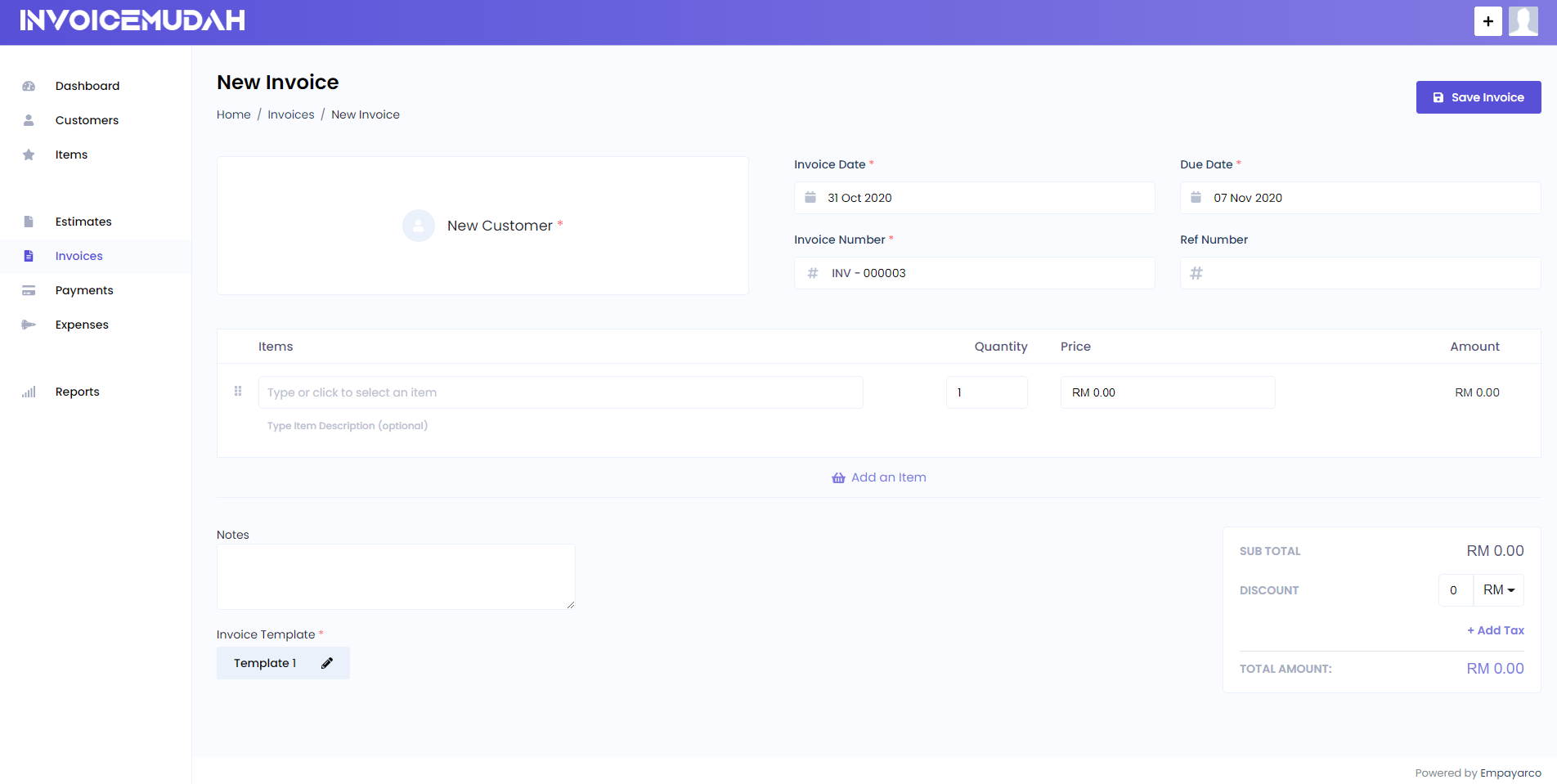
An invoice can be created using one of the three pre-designed templates. You can add additional taxes to the invoice and also add it as a compound tax. Also, you can give a discount to your customer by percentage or fixed value.
Note that invoicemudah supports per-item discounts as well as discounts on the total invoice value. You can change the setting from Settings -> Preferences page.
# Invoice Fields:
- Customer: Your customer whom you'll be sending the invoice.
- Date: Date of the invoice.
- Due Date: Date of the day when the Invoice will become Overdue.
- Invoice Number: Unique Identification number for the Invoice. Its automatically generated each time you create a new invoice.
- Items: Invoice Items with Name, Description, Quantity, Discount of the Item.
- Notes: Extra details that you would like mention on the invoice.
# List Invoices
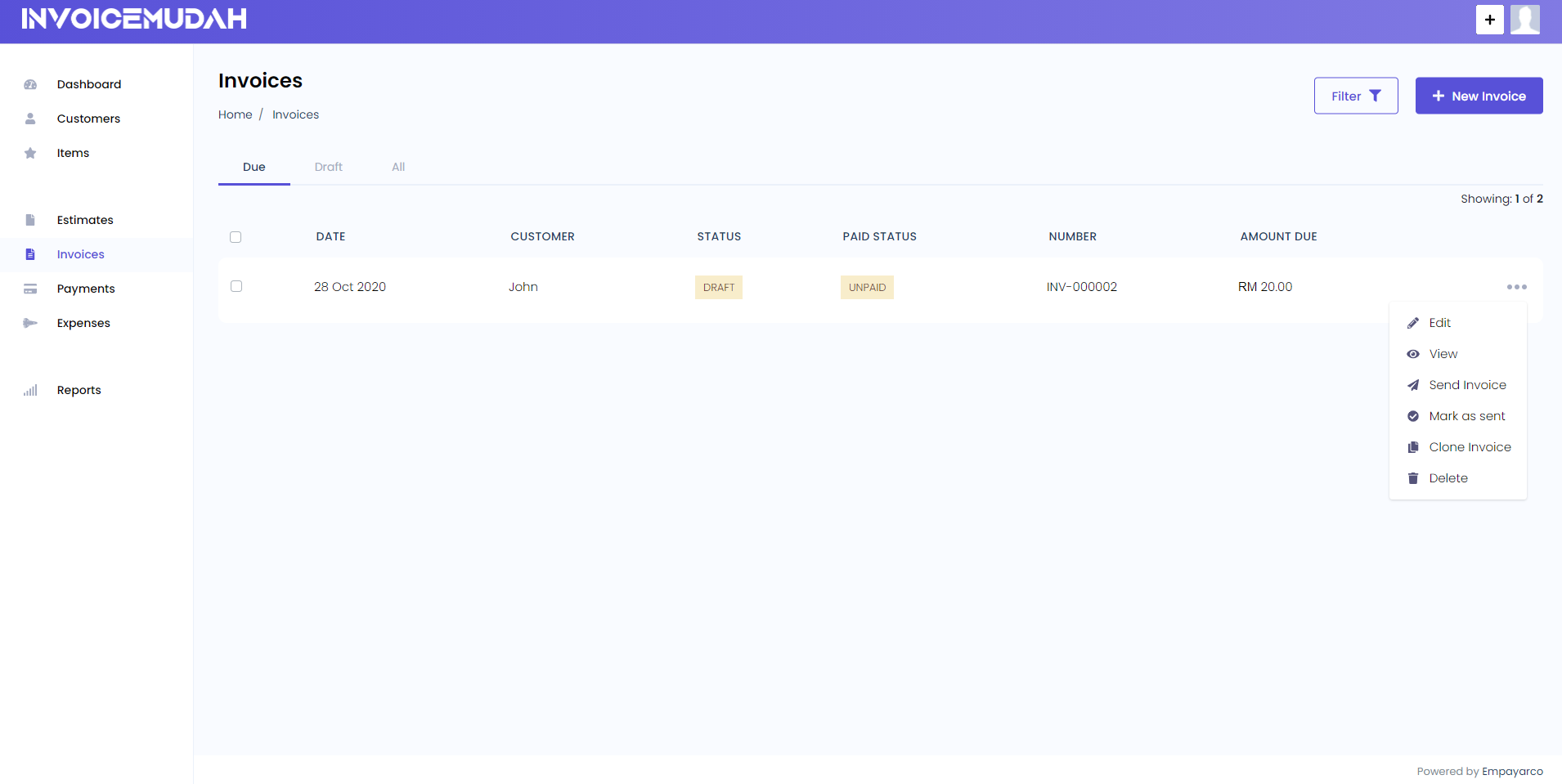
All created invoices are shown on the Invoices page and you can easily edit or delete them as well. You can also use filters to quickly search for a particular invoice by its customer, status, date and number.
You choose to send an invoice directly from the application or mark the invoice as sent.
# Invoice Lifecycle
Below are the different statuses of an invoice:
- Draft: Invoice has been created but hasn't been sent to the customer.
- Sent: Invoice has been sent to the customer.
- Viewed: Invoice has been viewed by the customer.
- Overdue: Invoice has passed the
due_dateset by you. - Completed: Invoice has been fully paid and marked as completed.